| ●预览成品:用鼠标控制一Movie clip移动、缩放、旋转。 下载源程序
●逐步说明:
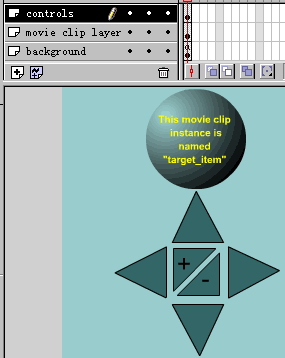
1)新建一文件如图所示:
其中在图层movie clip layer中放的是电影图符movie clip,在图层controls中放的是按钮left(向左的箭头)、right(向右的箭头)、up(向上的箭头)、down(向下的箭头)、grow(带有“+”的指向左上角的箭头)、shrink(带有“-”的指向右上角的箭头),在图层background中放的是场景中的背底图。
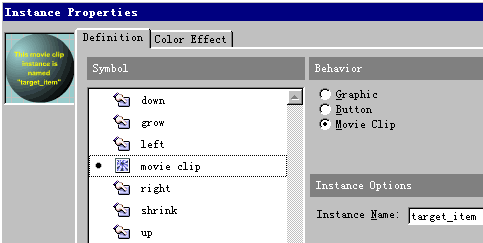
2)用鼠标右键点击movie clip,在弹出的菜单中选择“Properties”项,进入属性对话框,切换到Definition选项卡,在Instance Name域中输入实体名字“target_item”。
3)设置“left”按钮的Action为: 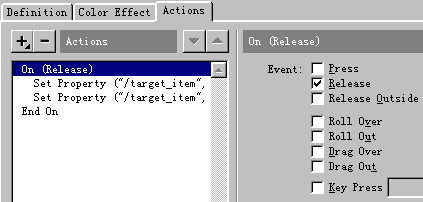
On (Release)
Set Property ("/target_item", X Position) = GetProperty ("/target_item", _x)-5
Set Property ("/target_item", Rotation) = GetProperty ("/target_item", _rotation)-5
End On
即鼠标每点击一下该按钮,实体名字为“target_item”的movie clip向左移动5,并逆时针旋转5度。
4)设置“right”按钮的Action为:
On (Release)
Set Property ("/target_item", X Position) = GetProperty ("/target_item", _x)+5
Set Property ("/target_item", Rotation) = GetProperty ("/target_item", _rotation)+5
End On
即鼠标每点击一下该按钮,实体名字为“target_item”的movie clip向右移动5,并顺时针旋转5度。 |  当前位置:学海荡舟 -> 电脑乐园 -> Flash实例☆