| 3)点击等时线窗口左上方的Scene1按钮 ,切换到场景1。从图符资料库中拉入“flower”,并调整其位置如图所示。 ,切换到场景1。从图符资料库中拉入“flower”,并调整其位置如图所示。 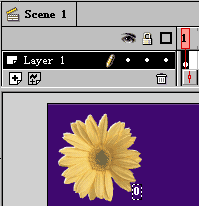
设置其实体名为“flower”。 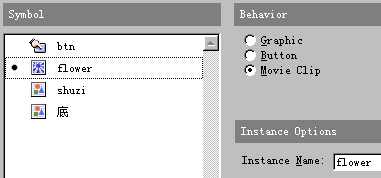
4)制作一名为“btn”的按钮如图所示, 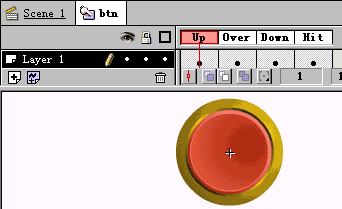
制作完毕,把他拉入到场景1中,其中左边按钮的上方增加符号“+”,右边按钮的上方增加符号“-”,如图所示。 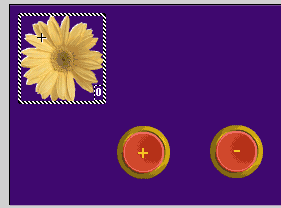
5)用鼠标双击左边的按钮,在弹出的对话框中切换到Actions选项卡,输入程序如图所示:
On (Press)
If (shuzi<=2)
Set Variable: "shuzi" = shuzi+1
Set Variable: "bn" = "flower"&shuzi
Duplicate Movie Clip ("/flower", bn, shuzi)
Set Property (bn, Y Position) = GetProperty (bn, _y)
Set Property (bn, X Position) = GetProperty (bn, _x) + shuzi*(GetProperty (bn, _width))
Set Variable: bn&":shuzi" = shuzi
End If
End On
解释:如果文本框中的数字(变量“shuzi”)小于或等于2,则变量shuzi的值加1,复制实体名称为“flower”的图片为“flower”&shuzi,即为“flower1”、“flower2”、“flower3”。设置每个复制的图片的X坐标和Y坐标。最后一句可以使“花朵”图片中的数字随着图片数目的增加而相应变化。
6)设置右边按钮的Actions为:
On (Press)
If (shuzi>0)
Set Variable: "bn" = "flower"&shuzi
Remove Movie Clip (bn)
Set Variable: "shuzi" = shuzi-1
End If
End On 解释:删除复制的图片,直到只剩下一个为止。
7)制作完毕,选择菜单Control>Test Movie,即可测试效果。 |
 当前位置:学海荡舟 -> 电脑乐园 -> Flash实例☆